Blog
Softphone audio problems, and the fixes
Wrong output device, Bluetooth switching, processor contention, Wi-Fi roaming and one-way audio. Work down the list, cheapest test first, and fix it.
John · Owner and CEO · 7 min read ·
Most softphone audio faults are not in the softphone. They are in the headset's physical mute, the computer's output device, another program holding the microphone, a wireless link, or the network. Work down the list below in order, because the cheap tests are also the common answers.
Each row has one test. Do the test before changing anything.
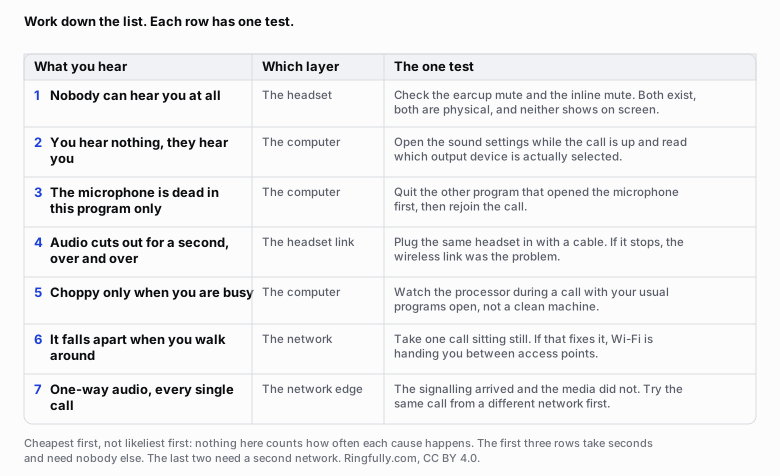
Cheapest test first. The first three rows take seconds and need nobody else; the last two need a second network.
Reuse this figure anywhere, including commercially, with credit to Ringfully and a link back to this page. CC BY 4.0.
Work down the list, cheapest test first
The order is cheapest-first, not likeliest-first, and the difference is worth stating because nobody has counted how often each cause occurs in your office. What is true is that the first three tests take seconds and need nobody's help, and the last two need a second network and a colleague, so doing them in this order costs you nothing and often saves the afternoon.
One rule underneath all of it: change one thing at a time. Swapping the headset, moving to a cable and restarting the client at once tells you the problem went away and nothing about which change did it.
1. Nobody can hear you: the mute you cannot see
Start here every single time.
A headset usually has two mutes: a button on the earcup and a switch on the inline control. Neither of them reports to the computer on many models, so the softphone shows an unmuted microphone while the headset is silent. Some headsets also mute when you swing the boom arm up, which people do without noticing while they are reading.
The test: press the earcup button, check the inline switch, and lower the boom. Then say something and watch the microphone level meter in the softphone move. If it does not move, the microphone is not reaching the software and you can stop looking at the phone system.
2. You hear nothing, they hear you: the output moved
The second most common cause, and the one that produces the most confident wrong diagnosis.
A softphone borrows the computer's audio settings, which follows from what a softphone actually is: a program using hardware it does not own. Plugging in a monitor, joining a meeting, connecting a headset or waking from sleep can all change the default output device, and a client that follows the default follows it into a monitor facing the wall.
The test: open the computer's sound settings while the call is still up, and read which output device is selected. Not which one you expect. Which one is highlighted.
The fix is permanent, not per call. In the softphone's own settings, set the call output explicitly to the headset, the microphone explicitly to the headset, and the ringer to the laptop speakers. A softphone that cannot do those three separately is a softphone that will keep doing this, which is why it is on the list of things to check before you choose one.
3. The microphone is dead in this one program
You can hear them, they cannot hear you, the mute is off, and the microphone works fine in the sound settings.
Something else has the microphone. Meeting software left running in the background, a recording tool, a browser tab that asked for the microphone an hour ago and never gave it back. Behaviour varies by machine: sometimes both programs share it, sometimes the first one to ask keeps it.
The test: quit the other programs that could plausibly want a microphone, then rejoin the call. If that fixes it, the habit worth building is closing the meeting window rather than minimising it.
4. Audio cutting out for a second, over and over
If the sound drops for half a second at a time, repeatedly, suspect the wireless link before you suspect the network.
A Bluetooth headset has two modes: one for playback, and a narrower two-way one it must switch to the moment it also has to carry your microphone. That switch happens when the call starts, and it is why a headset that sounds excellent playing music sounds noticeably worse on a call. It is expected behaviour, not a fault. What is not expected is the repeated dropout, which usually means the 2.4 GHz band around the desk is crowded.
The test: plug the same headset in with a cable, or borrow a wired one, and take the same call. If the dropouts stop, the wireless link was the problem, and the trade-offs between wired, Bluetooth and DECT are the next thing to read.
5. Choppy only when you are busy
A softphone shares the processor with everything else. Most of the time there is plenty to go round, and then somebody opens a spreadsheet that recalculates for forty seconds, or a browser with ninety tabs, or a build, and the audio starts to stutter.
The tell is that it happens at particular moments rather than continuously, and that it clears up on its own.
The test: watch the processor while a call is up, with your usual programs open. Not on a clean machine. The whole point is what your machine is like at eleven in the morning.
The fix is usually the installed client rather than a browser tab with everything else in it, closing the heaviest thing during calls, or, for a machine that is genuinely too slow, accepting that it is too slow. This is not a network problem and no amount of bandwidth fixes it.
6. It falls apart when you walk around
A call that is fine at your desk and unusable in the corridor is a Wi-Fi problem, not a phone problem.
As you move, your device hands over from one access point to another. For a moment during that handover there is no path for the audio. A file download waits and resumes and you never notice. A conversation cannot wait: the audio for that moment is gone, and gone late is the same as gone. The same is true of delay generally, which is why ITU-T's Recommendation G.114 on one-way transmission time treats up to 150 milliseconds one way as acceptable for most applications and considers anything past 400 milliseconds unacceptable for general network planning.
The test: take one call sitting still, in one place, on purpose. If that call is clean, you have found it.
The fix is in the wireless network, not in the phone system: fewer, better-placed access points, or a cable for the people who take calls all day. A cable is the cheapest quality improvement available to most small offices, and the least popular.
7. One-way audio, every single call
The distinctive one. Both screens say connected, the timer runs, and only one person can hear anything. It is almost never intermittent, which is the clue.
A call has two separate streams: the setup, which arranges the call, and the audio itself, which travels separately and often over different ports. A firewall or a router can happily allow the first and block the second, so the call connects perfectly and carries no sound one way. Clients deal with this by discovering how their own connection appears from outside, using something like STUN, defined in RFC 8489, and when that discovery fails or is blocked, one direction of audio has nowhere to go.
The test: make the same call from a completely different network, a phone hotspot will do. If it works there, the fault is at your network's edge and not in the softphone, the headset or the computer.
What to hand to whoever fixes it: which direction was silent, whether it happens on every call, and that it works on another network. That is enough to start from. What is not useful is the sentence "the phone is broken".
What to write down before you ask for help
Whatever you do next goes faster with four facts.
- Which direction failed. Could they hear you, could you hear them, or neither.
- Every call or some calls. Intermittent and constant have almost no causes in common.
- What changed the behaviour. A cable instead of Wi-Fi, a different headset, a different network, sitting still.
- When it started, and what else happened that week.
If the audio is fine and it is the file you upload for a greeting that is being refused, that is a different problem with a different answer: why a phone system rejects your greeting file. And if you have worked down this whole list and the calls still sound wrong, tell us what you tested and what changed, because the four facts above are what turn this into a short conversation.
Capacity is worth ruling out once, and only once: the bandwidth arithmetic takes ten minutes and is almost never the answer.
The rest of this cluster is under softphones and apps.
Figures on this page are CC BY 4.0. The delay figures are from ITU-T Recommendation G.114 and the address-discovery description follows RFC 8489, both linked above, as read on 2026-09-09.
Questions people ask
- Why can nobody hear me on my softphone?
- Check the physical mute on the headset first, both the button on the earcup and the one on the inline control, because neither of them shows on screen. If both are off, open the computer's sound settings while the call is still up and read which microphone is actually selected. Those two account for most cases, and both take under a minute.
- Why is my softphone audio coming out of the laptop speakers?
- Because something changed the computer's default output device and the softphone followed it. Plugging in a monitor, joining a meeting or connecting a headset can all do it. The fix is to set the softphone's own output device explicitly rather than leaving it on default, and to set the ringer separately so you still hear calls arrive when the headset is off your head.
- Why does my Bluetooth headset sound worse on calls than on music?
- Because the headset uses one mode for playback and a different, narrower one when it also has to carry your microphone. The moment a call starts, the link switches to the two-way mode and the sound quality drops audibly. It is normal behaviour rather than a fault, and the only real fixes are a wired headset, a DECT one, or accepting it.
- What causes one-way audio on a VoIP call?
- The call setup arrived and the audio did not. Setup and audio travel separately, so a firewall or a router can allow one and block the other, and the call looks perfectly connected on both screens while only one person can hear. Test the same call from a different network first: if it works there, the problem is at your network's edge rather than in the softphone.
- Why does my call break up only when I walk around the office?
- Your device is moving between Wi-Fi access points, and for a moment during each handover there is no path for the audio. A download does not notice; a call does. Take one call sitting still to confirm it, and if that fixes it, the fix is in the wireless network rather than in the phone system.
- How do I prove the problem is not my softphone?
- Change one layer at a time and keep notes. Same call on a cable instead of Wi-Fi. Same call with a wired headset instead of a wireless one. Same call from a different network entirely. Whichever change makes it stop is the layer at fault, and that one sentence is worth more to whoever helps you than any description of the sound.
About the author
John
Owner and CEO
Owner and CEO with over 10 years of experience in the IT industry, including more than 5 years specializing in VoIP and cloud communications. Experienced in designing, deploying, and supporting reliable communication solutions for businesses.

Keep reading
If you are deciding how your team should answer calls at a computer, tell us what people use today and where they work, and we will show you what answering in the browser or the Windows app looks like.